How to organize your travel confirmation emails
By Sébastien Arbogast, founder of Skaoot · Last updatedBooking a trip is the easy part. Keeping the confirmation emails organized is the part nobody warns you about.
A single trip can generate a dozen emails: a flight confirmation, a seat selection, an accommodation booking, a check-in reminder, a rebooked leg, a car rental voucher, a visa appointment. They arrive from different senders, with different subject lines, over the course of weeks. By the time you’re standing at a gate or a front door, the one thing you need is buried somewhere in your inbox.
There are three realistic ways to get on top of this, and this guide covers all of them honestly:
- One email folder per trip: simple, free, and genuinely enough for occasional trips.
- Per-trip folders, a calendar, and cloud document storage: adds a timeline and a home for your documents, at the cost of manual upkeep.
- Forwarding everything to a travel assistant: the least manual option, and the one that holds up best for frequent or complex travel.
None of them is “correct.” The right one depends on how you actually travel. The rest of this guide shows you how to set each one up well, and just as importantly, where each one breaks.
Why are travel confirmation emails so hard to keep track of?
It’s worth understanding why your inbox loses the thread, because it explains why some systems hold up and others don’t.
- The emails come from everywhere. Each airline, each hotel, Airbnb, Booking.com, the rental company, the visa service: every provider sends from its own address. There’s no single sender to filter on.
- The subject lines are inconsistent. “Your trip to Lisbon,” “Booking confirmed,” “E-ticket receipt,” “Reservation #4471.” Nothing about them is predictable, so searching is guesswork.
- Updates don’t attach to the original. When an airline rebooks you, the new email rarely replies to the old thread. It arrives fresh, with a new subject line, as if it were a separate booking.
- The useful part is buried. The door code, the check-in window, the terminal, the baggage allowance: these sit in paragraph nine of a long HTML email, under a marketing banner.
- Trips interleave. Emails for next month’s trip arrive in the same stream as this week’s. Your inbox is chronological by received date, not by trip.
A good system has to survive all five of those. Keep them in mind as you read.
Option 1: One email folder per trip
The simplest system, and the one most people reach for: a folder (or label) for each trip, where every email for that trip lives together.
A common first instinct is a single Travel folder for everything. Skip that. It quietly becomes the problem. One flat folder fills up with years of finished trips, and the email you need for next week sits buried under a stack of trips you took in 2023. The fix is one folder per trip.
How to set it up well:
- Create one folder or label per trip, named for the destination and the year:
Cape Town 2026,Lisbon 2026. The year matters: it keeps a repeat visit from colliding with the last one. In Gmail it’s a label; in Outlook or Apple Mail it’s a folder. - Put everything for that trip in it: the flight out, every accommodation stay, the car rental, the visa, the tours, the restaurant you booked ahead. One trip, one folder, so you never search your whole inbox to reassemble it.
- Use filters to catch travel emails, then file them. Filters are good at recognising that an email is travel-related: they catch airline and booking-platform domains, and subject lines containing
confirmation,itinerary,e-ticket, orbooking. They can’t tell which trip an email belongs to. So either let a filter drop everything into a holdingTravellabel and move each email into its trip folder by hand, or (for a trip you’re actively booking) create a short-lived filter for that trip and retire it once you’ve left. - Archive the folder when the trip is over. This is the move a single flat folder can’t make. One action drops a finished trip out of sight, and your list of active folders stays short and current.
Where it works: if you take a handful of simple trips a year (a round-trip flight, one hotel), a folder per trip is genuinely enough, and the archive-when-done habit keeps it tidy for years. Don’t let anyone tell you that you need more.
Where it breaks: the filing is mostly manual: filters get an email into your inbox’s travel pile, but sorting it into the right trip is on you. You still open every email to find the door code. The folder is chronological by received date, not by trip order, so a seat-selection email from January sits above a hotel you booked in March. A rough timeline, not a real one. And the rebooked-flight email lands right next to the original, with no signal about which one supersedes the other.
Option 2: Per-trip folders, a calendar, and cloud document storage
The next step up keeps the per-trip folders and adds two things they can’t do on their own: a calendar for the timeline, and a cloud storage app for the documents that never arrive as emails.
Add a calendar for the timeline. Keep the per-trip folders from Option 1 as your email archive. Then create a calendar event for each fixed point: each flight, each check-in, each check-out. Put the essentials in the event notes: confirmation number, address, terminal, door code, host phone number. Colour-code by trip if your calendar supports it. A lot of modern email clients like GMail analyze your emails and give you buttons to easily add events to your calendar based on data from your mailbox. And of course some travel providers also attach ICS files to their emails, which are calendar events you can just open to add them to your calendar.
Add cloud storage for your documents. Plenty of what you need on a trip never lands in your inbox at all: a travel insurance certificate, passport scans, a visa approval, your driver’s licence, vaccination records. Give them a home in a cloud storage app like Dropbox, Google Drive, or iCloud Drive, and mirror the structure you already use for email:
- A root
Travel documentsfolder for the things that apply to every trip: passport scan, driver’s licence, insurance policy. Set these up once. - A subfolder per trip, named like the email folder (
Cape Town 2026), for that trip’s specifics: the visa, the car rental voucher, the tour confirmations. - Delete the trip subfolder when you get home. Same discipline as archiving the email folder: finished trips don’t pile up.
- Turn on offline access for the active trip’s folder. A border queue or a rural guesthouse is exactly where you need a document and exactly where you have no signal. Offline files are on your device regardless.
Where it works: if you already live in your calendar, this gives you a real timeline and a predictable, offline home for every document, without handing anything to an assistant. For a trip or two a year, it’s a solid system.
Where it breaks: it’s all manual, and now there are three places to keep in sync: folder, calendar, storage. Every booking is a copy-paste job. Updates are on you: when a flight time changes, you have to find the event and edit it. The calendar is a poor home for “door code” information. You don’t think to open a calendar event when you’re standing at a front door. And nothing here tracks anything live.
This is the workflow we’ve written about in more detail in Skaoot vs doing it yourself: folder, calendar, document storage, one app per airline. It works, up to a point. That point is roughly where your trips start to overlap and change.
Option 3: Forward everything to a travel assistant
The third approach changes the model. Instead of you filing, copying, and updating, you forward each confirmation email to a travel assistant, and it does the organizing.
How it works: a travel assistant gives you an email address to forward bookings to. When you forward a confirmation (flight, stay, train, rental, visa), the assistant reads it, pulls out the structured detail, and places the booking on a single chronological timeline. Forward the rebooked-flight email later and it merges the change into the existing booking instead of creating a duplicate.
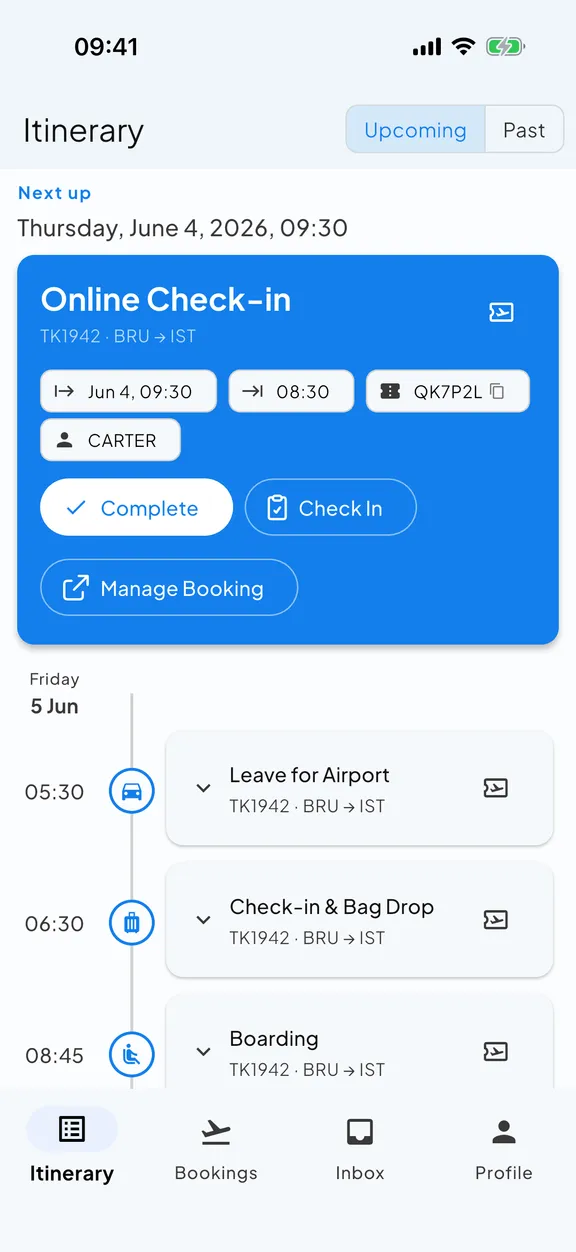
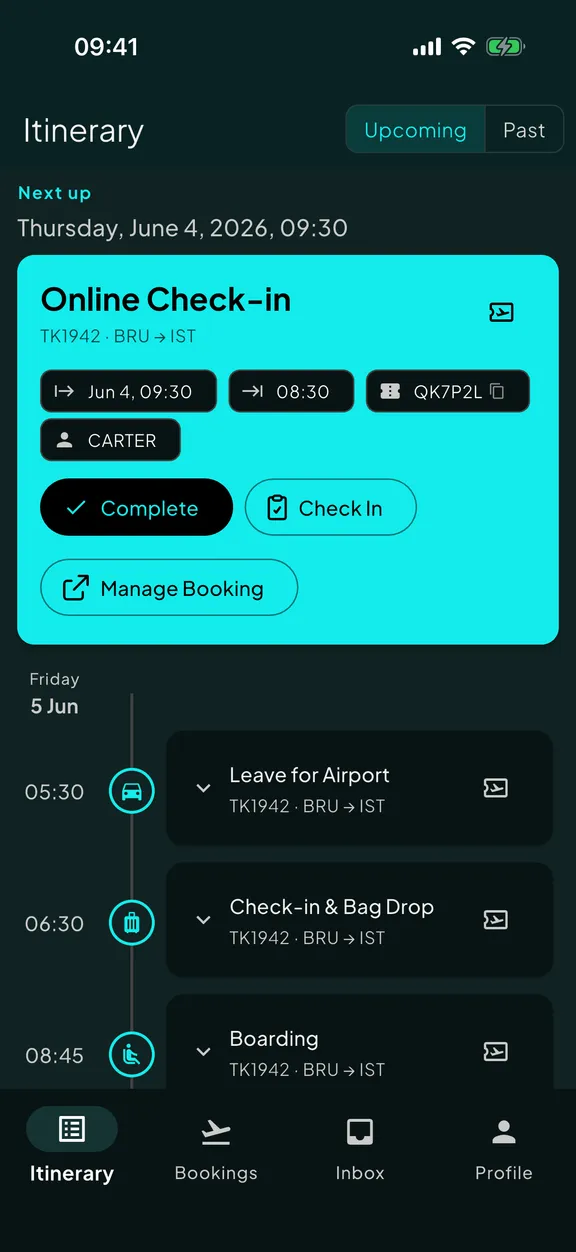
The honest cost: you have to forward each email. It’s a small habit, but it is a habit. The assistant only ever sees what you choose to send it. (That’s also the privacy upside: no app reads your whole inbox.)
It maps cleanly to the five problems from earlier: the assistant reads any provider, reads the content rather than the subject, correlates updates with existing bookings, extracts the useful part and surfaces it when relevant, and places every booking on one chronological timeline automatically.
Skaoot is built around exactly this model, and it’s the one we’d recommend if your travel is frequent, multi-leg, or prone to change. You can see how the forwarding workflow works in detail, or how the unified timeline comes together. It isn’t the only travel assistant; it is the approach that holds up best when a folder and a calendar start to creak.
Which approach is right for you?
Be honest with yourself about how you travel. The best system is the one you’ll actually keep up.
- You take one or two simple trips a year. A folder per trip is genuinely enough. Don’t overbuild.
- You travel several times a year and like a schedule view. Per-trip folders, a calendar, and cloud document storage. Accept the manual upkeep as the price of not adding an app.
- You travel often, your trips have many moving parts, or your plans change a lot. A travel assistant earns its keep. The manual approaches start costing you real time and quiet stress exactly when a trip gets complicated.
There’s no prize for using a more sophisticated system than your travel requires.
Five habits that help no matter which system you use
- File or forward the email the moment it arrives. “Later” is when things get lost.
- Know which email addresses your bookings go to. Many travelers use a work address for some bookings and a personal one for others.
- Never delete the original confirmation. It’s the source of truth.
- Flag the active trip. Mark its key items so they’re one tap away, not one search away.
- Do a two-minute check before you leave. The day before a trip, confirm everything you expect is where you expect it.
Quick answers
What is the best way to organize travel confirmation emails?
Should I keep one "Travel" folder for everything?
Do I have to give an app access to my inbox to automate this?
The bottom line
Organizing travel confirmation emails isn’t about being tidy for its own sake. It’s about not having to dig through your inbox at the exact moment you’re tired, in a new country, and need one specific piece of information.
If your trips are simple and occasional, a folder per trip will serve you well for years. If your trips have outgrown that (more legs, more countries, more changes), forwarding everything to a travel assistant turns the whole job over to something built for it.
Tired of holding your whole trip in your head?
Skaoot turns forwarded booking emails into one calm timeline of flights, stays, and more. It updates itself when plans change. Free for your first 5 bookings.
Related posts
Your travel itinerary is lying to you
The airline changed your flight weeks ago. You never saw the email, and your itinerary still shows the old time, looking completely confident about it. Here's how to catch a schedule change before it strands you.
Why every itinerary app breaks when you're a nomad
Most itinerary apps assume a trip has a start, an end, and one destination. That works for a two-week holiday. It quietly falls apart the moment your travel becomes continuous.